Connection guide
Connect to the Mac app
Connect with the WeChat Mini Program or the iOS App. After the connection is complete, your phone can send button presses and microphone audio.
Current connection method
WeChat Mini Program
Keep the Mac app open and follow these steps.
- 01
Open Connection settings
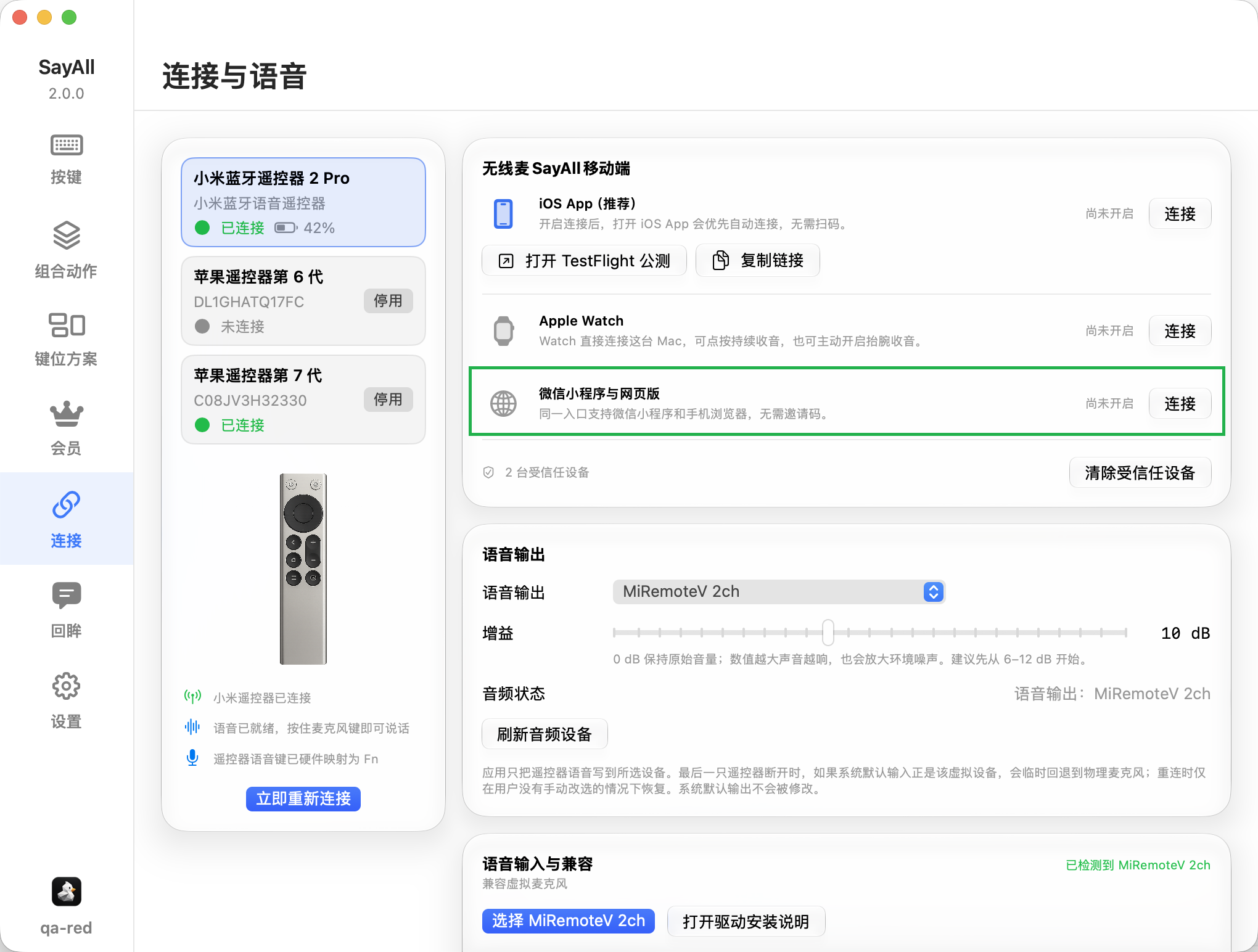
Open “Connection” in the Mac app sidebar. Find “WeChat Mini Program and Web”.
- 02
Select “Connect”
Select “Connect” on the right side of “WeChat Mini Program and Web”. The Mac app opens the connection window.
- 03
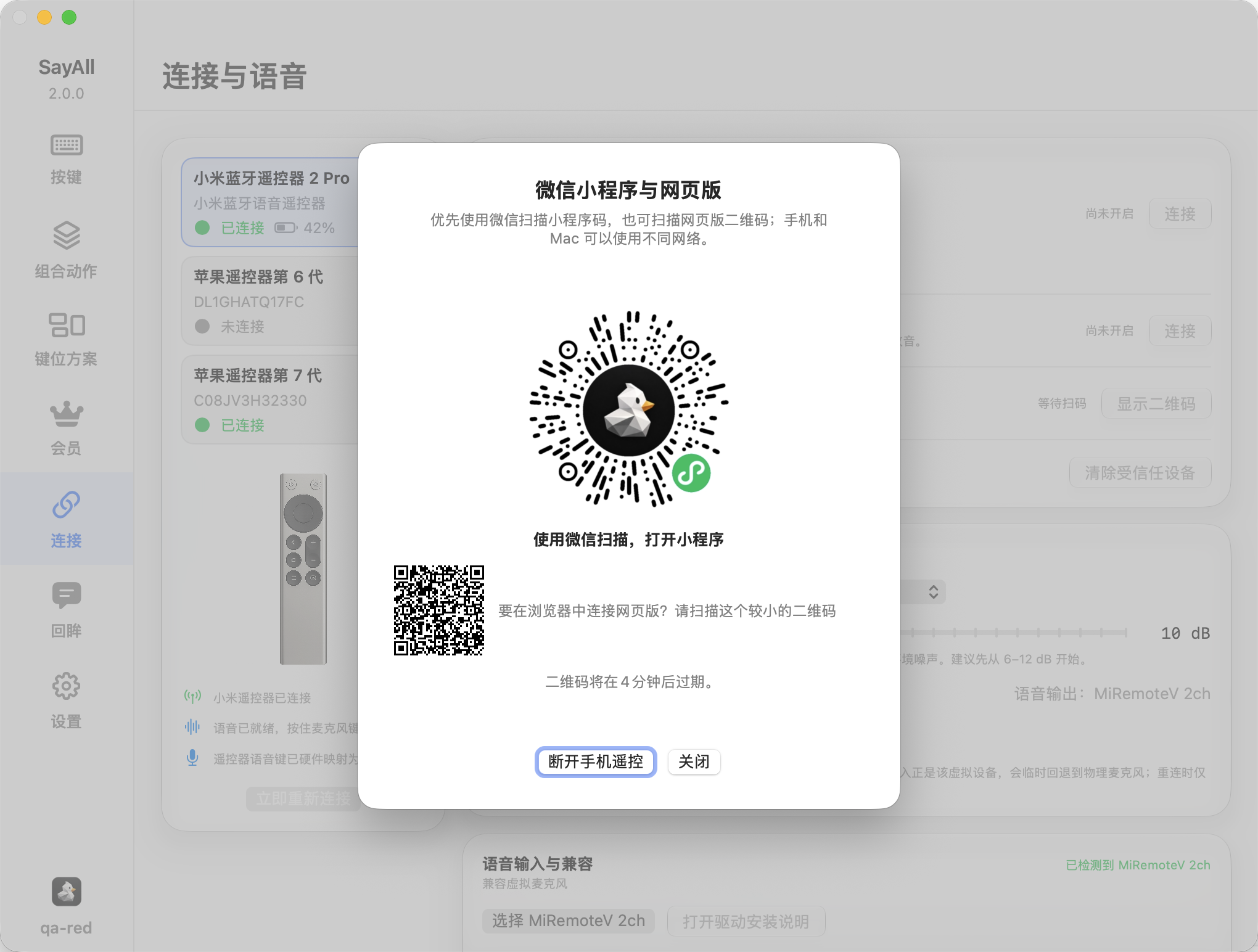
Scan the Mini Program code
Use WeChat to scan the larger Mini Program code in the connection window. WeChat opens the SayAll Mini Program.
- 04
Wait for the connection
Return to the Mac app and check the connection status. When the Mini Program shows its controller page, it can send button and voice input.
- Generate a new code after the current code expires.
- Keep the Mac app open until the Mini Program shows the controller page.
- If the connection fails, close the old window and generate a new code.
Another connection method
iOS App
The SayAll iOS App requires iOS 17 or later and connects to the Mac on the same local network. No QR code scan is needed.
- 01
Enable the iOS App connection on Mac
Open “Connection” in the Mac app sidebar. Select “Connect” in the “iOS App (Recommended)” row under “SayAll Mobile”. If the iOS App is not installed, open the TestFlight beta page.
Open the TestFlight beta ↗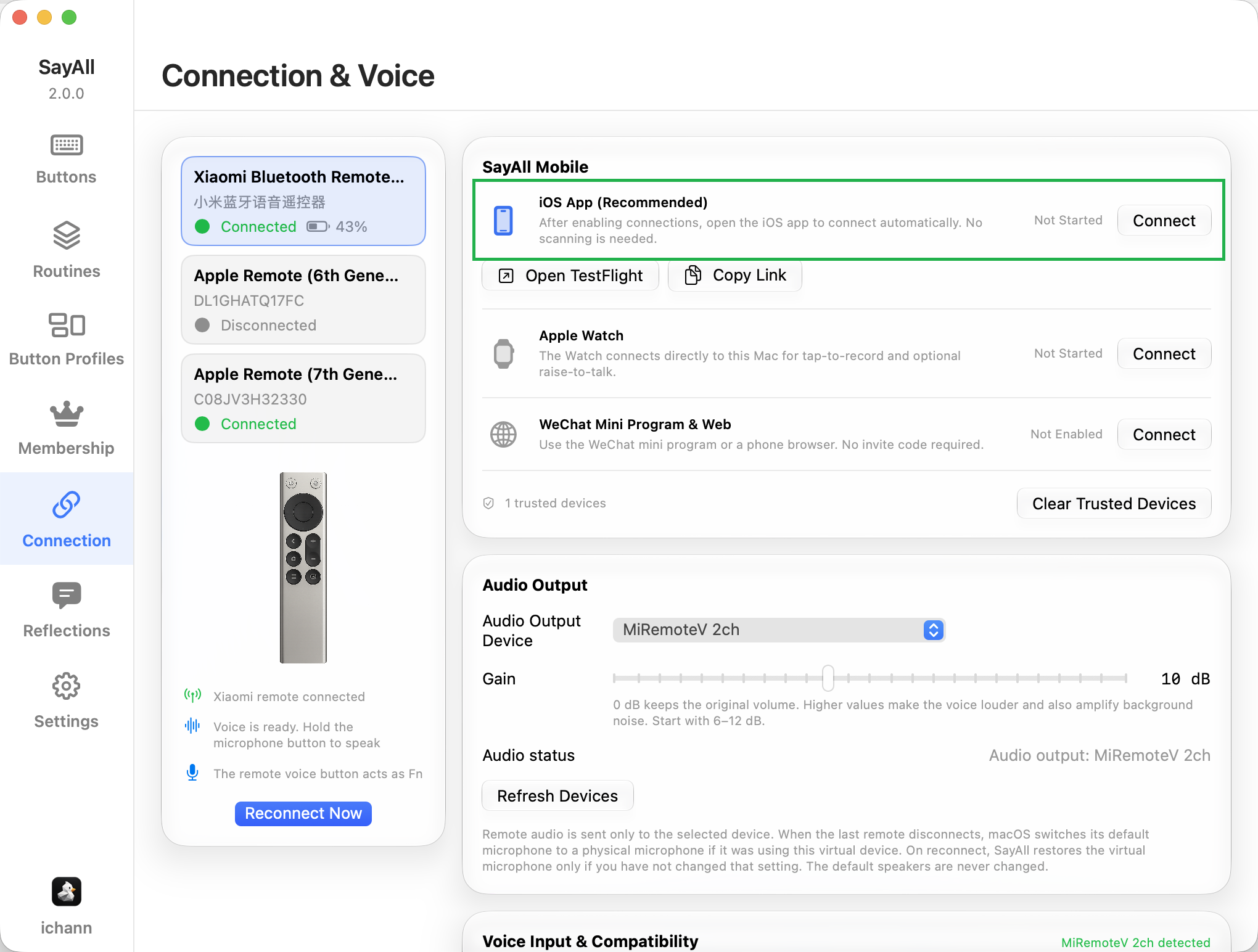
- 02
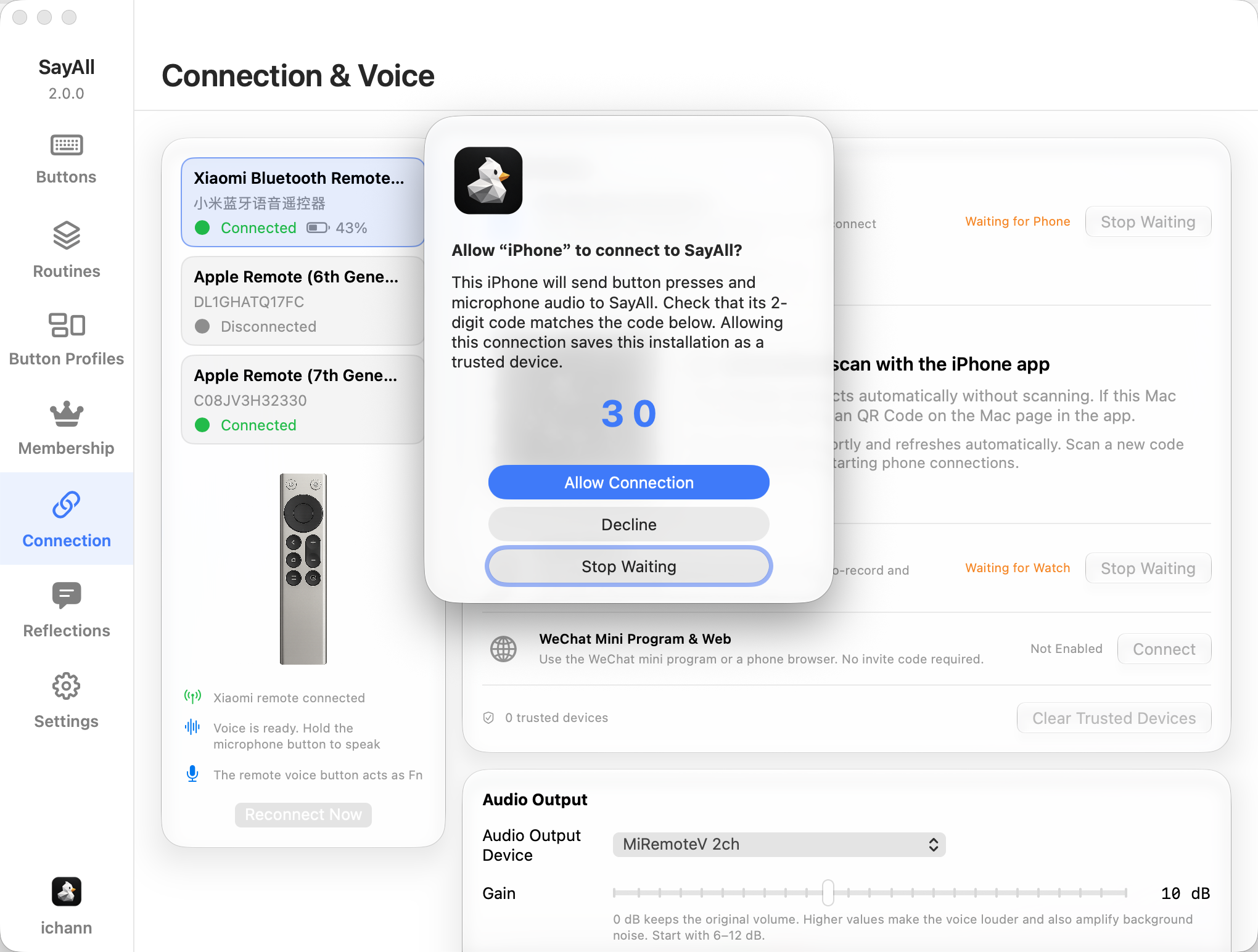
Confirm the pairing code on iPhone
Open the iOS App. Check that the two-digit code on the iPhone matches the code on the Mac, then select “Allow Connection”. After the connection is complete, the iPhone can send button presses and microphone audio.